

The short answer
Yes. If you are signed in, you can generate up to four explanatory images per answer. Every answer has its own limit, so a chat can contain more images in total. In Image options, you can adjust the focus, style, format, and quality. CALC preselects the quality, and you can change it there. Each image costs 2 credits in Fast quality, 3 in Balanced, and 6 in Best. Best quality is available with Starter and higher plans.
Video: Creating Explanation Images with Mia
Mia guides you, using real CALC screenshots, from your technical question through to the image options and finally to the finished explanatory graphic.
English · 77 seconds · AI narration · CALC screenshots with German interface · optional subtitles
Transcript for the video
Hi, I’m Mia. I’ll show you how to use CALC to create clear explanatory graphics from a technical answer. Start by asking a specific technical question. For example: Why is an I-section well suited as a bending beam? The answer will explain the roles of the flanges and the web. Click Generate image below the answer. The image will refer directly to that answer. Add an extra instruction for more precise depiction. For example, highlight the top flange in red and the bottom in blue. Select the style, labels, format, and quality. For our examples, we chose Best quality. Review the displayed credit cost and start image generation. Wait for the result to appear in the chat. If a detail isn't quite right, open Improve with instruction. Describe the desired change and choose a different style if needed. This also works for other topics, like concrete and reinforcement working together. Check labels, arrows, and structural details before sharing. Below the image, you can download or add it to a PDF. An explanatory image helps visualize the answer but does not replace a verified design.
How an Answer Becomes an Explanation Graphic
First, enter your technical question in the chat. Click Generate image beneath the answer. An additional instruction allows you to specify which details the image should show. Next, choose the style, labeling, format, and quality, then start generating.

Example 1: Flanges and Web of an I-Section
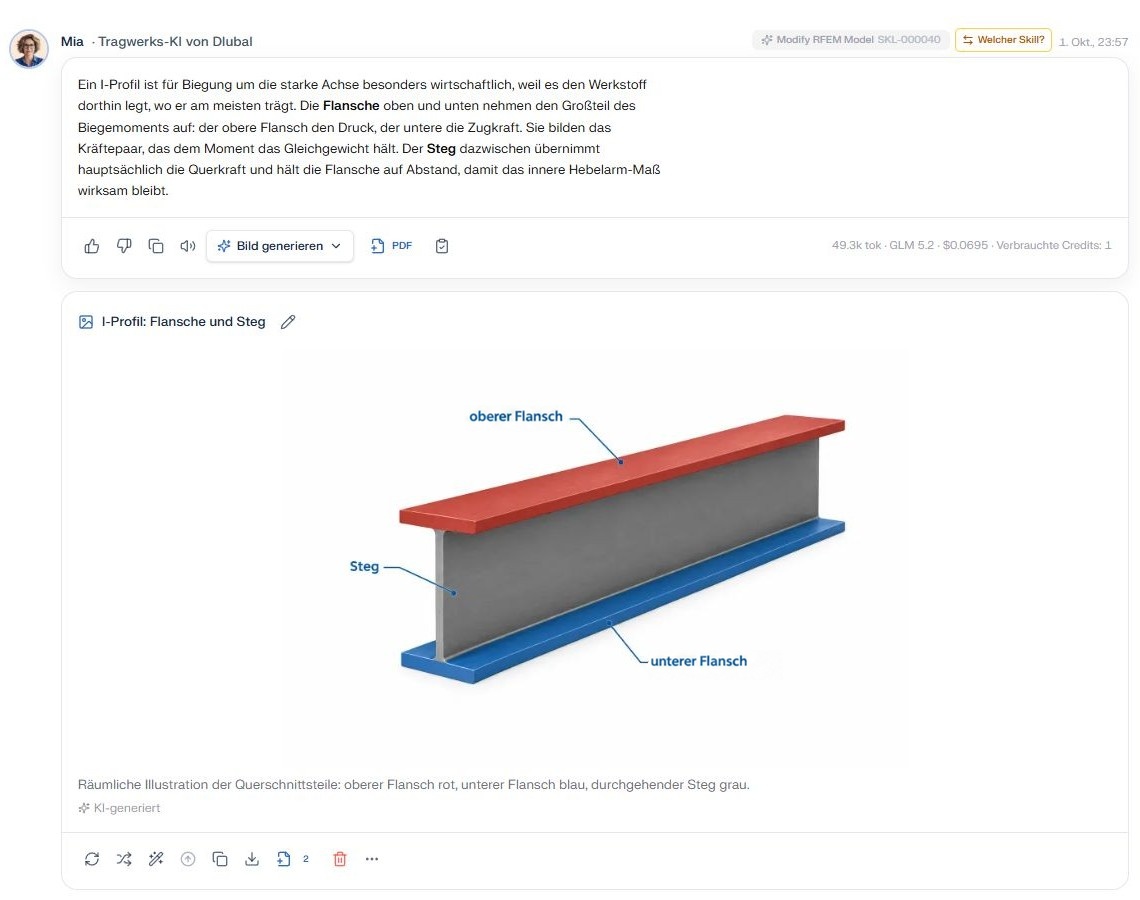
Ask CALC: “Why is an I-section well suited as a bending beam? Explain the roles of flanges and web in bending about the strong axis. Consider a simply supported beam with a downward load: compression at the top, tension at the bottom.”
The answer explains the roles of the individual cross-section components. In the explanation graphic, you can highlight the flanges in color and label the web. This lets you directly associate terminology from the answer with the parts in the image.
Example 2: Concrete and Reinforcement Working Together
Ask CALC: “How do concrete and reinforcing steel work together in a reinforced concrete beam? Explain a simply supported beam with a downward load: concrete at the top in the compression zone, longitudinal reinforcement at the bottom in the tension zone, and the bond between them.”
A section view reveals the internal reinforcement. For the image, specify instructions such as: “Show the compression zone of the concrete and the tension reinforcement in different colors. Label concrete, reinforcement, and bond.”
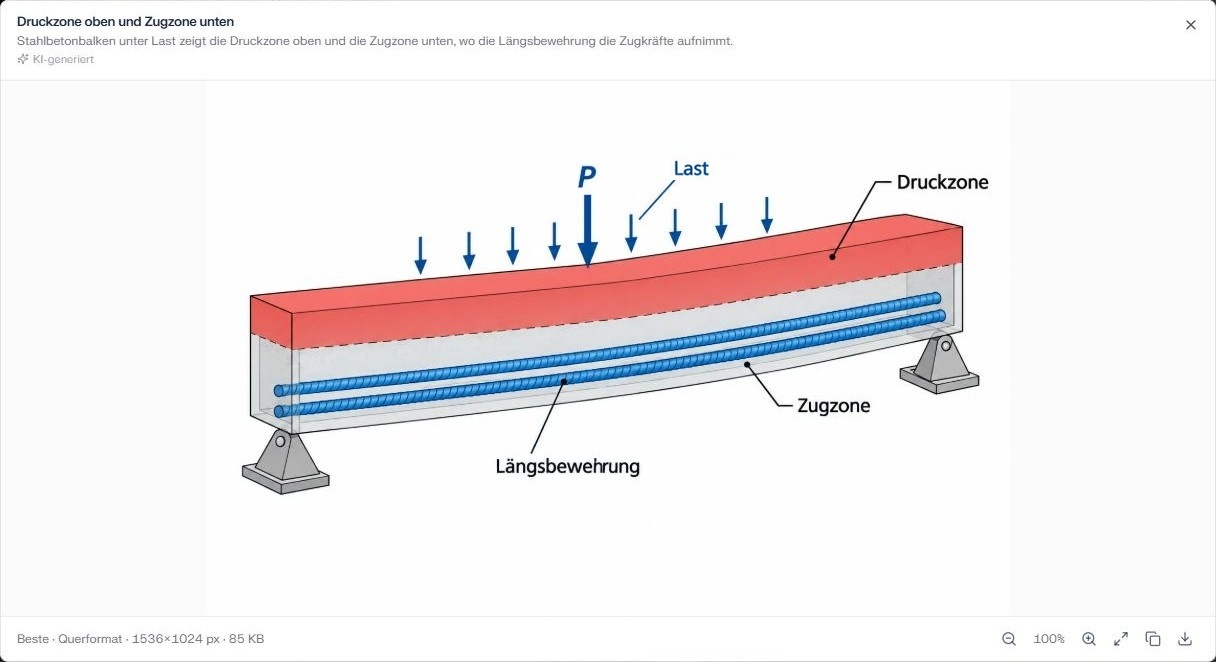
Image terms: top flange, bottom flange, web, load, compression zone, tension zone, longitudinal reinforcement.
Explanatory images illustrate an answer. Check labels, arrow directions, and structural details before sharing. They do not replace a verified structural sketch, reinforcement drawing, or design.