
Connecting RFEM
The browser pairs with Dlubal Connector. The protected connection to local MCP 1.0.13 and later also uses a separate access token, managed automatically by the matching Connector. Your RFEM API key remains separate. Update Connector and MCP together while RFEM is not calculating.
RFEM 6 runs on your machine. Dlubal CALC runs in your browser. Joining the two is a small helper
program called the Dlubal-Connector, which listens on 127.0.0.1:8083 and passes
instructions to RFEM.
Once it is running and paired, you can work like this:
Build a portal frame, span 12 m, height 5 m, HEA 240 columns and an IPE 400 rafter,
in a new RFEM model. Then calculate it and give me the support reactions.
Dlubal CALC builds the model in your open RFEM, runs the analysis, and reads the results back. You watch it happen in RFEM while it does.
RFEM access is included in every plan, Free included. If an answer tells you that RFEM is a paid upgrade, that is the model guessing, not a real restriction. What the shipped configuration grants is listed in Plans and credits.
RFEM 6 must be installed locally and running on the same Windows computer as the Dlubal Connector. You need a valid, available RFEM 6 license and a Dlubal API key in your CALC profile. RFEM access does not work without a local installation or an available RFEM license. The CALC integration is included in every CALC plan; it does not provide an RFEM license.
In the RFEM menu, choose Open connection settings → Manage in profile to check the key. Automatically provisioned keys are partially masked and read-only. If your profile offers an input field instead, enter and save your own Dlubal API key there. Contact Dlubal support if you do not have a valid key.
Setting it up
-
Install the Dlubal-Connector on the machine where RFEM 6 is installed.
-
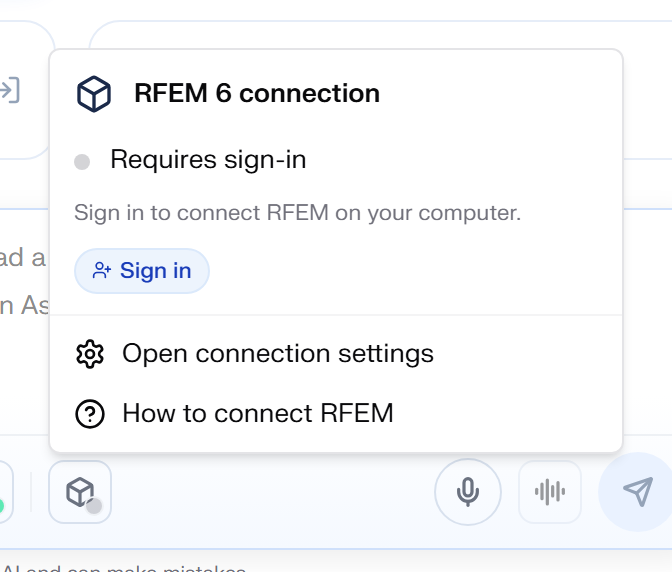
Open Dlubal CALC and click the RFEM icon in the message bar, below the input field. That icon carries the live status and the action for whatever state you are in. Until you have paired once, the RFEM card in the sidebar shows the same thing.
-
Pair the connector once. Pairing ties this connector to your account, so a connector on your machine cannot be driven by anybody else. Windows asks you to confirm it, once.
-
RFEM must be running. Enable chat access if needed and click Start RFEM in the RFEM menu when offered, or start RFEM directly in Windows. Respond to startup and license dialogs in RFEM. Without an installation, the menu offers a trial link instead of the start button.
-
Turn on Use in this chat if it is off, then check for Connected. Status details in the RFEM menu are hidden while chat access is off.
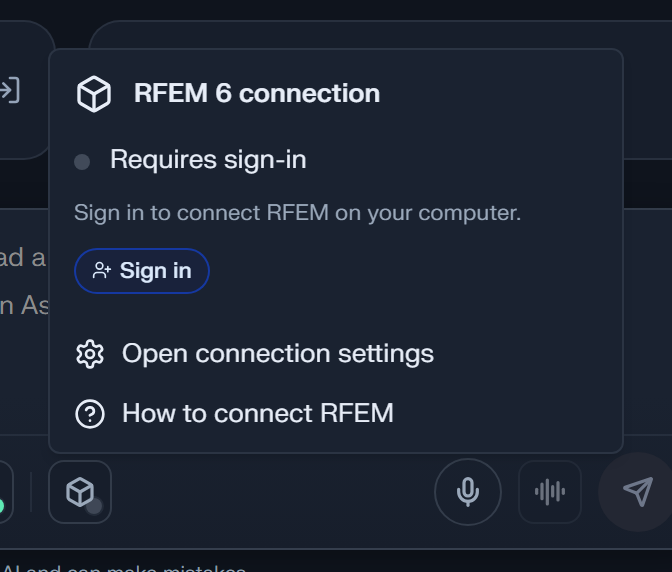
Settings → AI assistant → Approval before model changes separately controls confirmation for model changes. Enabling chat access does not replace those approvals.
The order of steps 3 and 4 does not matter. The order of steps 1 and 3 does: the connector has to be running before Dlubal CALC can pair with it.
The same setup as a three-minute video, with captions and the full transcript below it:
Read the transcript
RFEM access requires RFEM 6 installed locally on the Windows computer with the Connector. You need a valid, available RFEM license. Access does not work without the installation or an available license. The Connector must be running and paired with your CALC account. The Dlubal API key is created and managed automatically. You do not need to create, enter or check it. This screenshot shows the chat input and its toolbar in the German interface. Click the cube icon for RFEM 6 connection to open the dropdown. It contains chat access, connection status and further actions. In this example, access is enabled and RFEM is connected. The displayed status depends on your connection. Open the cube icon below the chat input. Enable RFEM access in this chat if it is off. The status details then become visible. If RFEM is not running, click Start RFEM in the RFEM menu when the button is offered. Alternatively, start RFEM directly in Windows. Respond to startup or license dialogs in RFEM. Then wait for Connected. Starting RFEM alone does not confirm working access. After installation or an update, the Connector prepares the connection. This can take several minutes on slower computers. Keep RFEM and the Connector open. Do not start more repairs while setup is still running. Later checks are usually faster. Follow the displayed status and the next action offered. Now check that the RFEM status is Connected. A running Connector or confirmed pairing alone does not prove working RFEM access. The chat switch allows CALC to use RFEM in this chat. Approval before model changes, under Settings, AI assistant, separately controls additional confirmations. If the Connector is outdated, use the offered update and confirm any required Windows dialogs. If the check makes no visible progress for several minutes or an error appears, open the offered connection repair. Confirm Check and repair and wait for it to finish. Then check for Connected again. You do not need to remove a working pairing first. If repair fails or the same error returns, save the available support report. Contact Dlubal support with the error message and your RFEM and Connector versions. Mention whether the issue started after an update. You do not need to copy or share API keys or pairing tokens. Access enabled and RFEM connected? You can now work with RFEM in your CALC chat.
If Windows blocks the installation
The Dlubal Connector is currently not digitally signed. Windows therefore does not recognise the publisher, and depending on your settings one of two things happens.
SmartScreen says "Windows protected your PC" and names an unknown publisher. More info and then Run anyway gets you past it.
Smart App Control blocks outright, and there is no button that lets you allow this one file. It is only active on Windows 11 machines that were set up from scratch.
Do not turn Smart App Control off in order to install the connector. Windows only lets you change this setting in one direction: once it is off, you cannot switch it back on without reinstalling the operating system. Please get in touch with us instead, so we know how often this happens.
The same menu carries a "How to connect" entry, which opens the official walkthrough: Connecting Dlubal CALC and RFEM 6. The chat offers that link too, whenever it has no RFEM tools and you ask for something that needs them.
When the chain is complete, the connection status in Settings reads like this:
The one confusion worth understanding
The Dlubal Connector menu and the RFEM row in Settings show the same live status, including any known blocker. The refresh icon in Settings starts the shared check again.
A reachable connector, pairing and a stored API key do not yet confirm working RFEM access. The RFEM status "Connected" requires a successful RFEM call and must not contradict a known blocker.
That single distinction explains most of the trouble reports in this area. The connector is a separate program with its own lifetime. It keeps running after you close RFEM, and it answers Dlubal CALC perfectly well while RFEM is not there at all.
Example: RFEM is open and pairing is confirmed, but the RFEM status remains "Connecting…" or reports a blocker. Cause: Pairing is available; successful RFEM access has not yet been proven or is blocked. Check: Open the RFEM icon in the message bar and read the reported reason.
/rfem-infosupplies additional version information; neither this nor a successful/healthresponse proves that RFEM API access works.
A cloud relay connection also needs a recent connector status. If it is missing, for example with an older connector version, readiness remains unconfirmed. Install the offered connector update. An open relay connection alone does not establish that RFEM can currently execute requests.
Which version is actually running
What each Connector and MCP version adds is listed on Connector and MCP versions.
Installation, uninstallation and Quit in the tray first check active and unresolved operations. If idle state cannot be confirmed, the Connector remains active and setup requires a later retry. With older Connector versions that lack this check, inspect the operations first and then close the Connector yourself. Do not force the process to stop.
With MCP 1.0.14 and a matching Connector, MCP packages live in a separate user directory. The running Dlubal program still supplies Python and its API: RFEM, or from Connector 2.30.25 also RSECTION or RSTAB when RFEM is not running. Package updates do not modify that installation. A new package version is validated before activation, which requires confirmed idle state.
Settings → MCP servers shows the Connector and running MCP version, for example
Dlubal-Connector 2.28.8 · MCP 1.0.11 on an older installation. An amber version
means the running version differs from the expected version.
Check the operations in the RFEM menu before restarting. An update waits while an operation is running or its outcome is unknown. For an older MCP version without shared idle checks, an operator must inspect outstanding work before shutting it down. Do not force a process to exit to clear the version warning.
Example: The version stays amber during a calculation. Check: Wait for completion and inspect the displayed operation ID. If the outcome remains unknown, first check in RFEM which changes actually occurred.
What the connector reports as blocked
Every state below has its own section in RFEM troubleshooting, and Dlubal CALC links straight to the one that applies when it knows which it is.
From version 2.26.0 the connector names the dominant reason the chain is unusable, instead of reporting a bare failure. These are the values it reports and what each one means for you:
| Reported blocker | What it means | What to do |
|---|---|---|
rfem_not_installed | No RFEM 6 installation found on this machine | Install RFEM 6, or pair the connector on the machine that has it |
mcp_installing | First-time setup is installing its Python component, which takes minutes | Wait. It resolves by itself |
rfem_not_running | RFEM6.exe is not running | Open RFEM 6 |
rfem_modal_dialog | A modal dialog is open in RFEM and blocks its interface | Click the dialog away in RFEM |
mcp_unresponsive | The component accepts connections but stopped answering | Inspect outstanding operations before attempting a controlled restart |
api_key_missing | No Dlubal API key available, so the component was never started | Check the key in your profile; enter your own key only if an input field is offered. Otherwise contact support |
mcp_starting | A start or restart is in flight | Wait, this phase is bounded |
mcp_down | RFEM runs, but nothing is serving the connection | Restart the connector |
grpc_unreachable | The component is up, but RFEM is not listening on its interface port | Restart RFEM |
api_key_rejected | RFEM refuses the key currently in use | Follow guided restore to apply the current account key; contact support if rejection persists |
unknown_operation | An earlier operation has no confirmed outcome, and new operations are refused until it is resolved | Inspect the model in RFEM, then resolve the record as described in troubleshooting |
not_proven | No successful RFEM access has been proven yet | Wait briefly for the connector's automatic check; open troubleshooting if it persists |
rfem_modal_dialog is worth singling out. An open dialog in RFEM, even a harmless one
asking you to confirm something, stops RFEM from answering. The model looks broken and the
cause is a window waiting for a click.
When it does not connect
Every state has its own section in RFEM troubleshooting. The three that are not about RFEM itself come up most often:
- The browser blocks it. Chrome 142 and later ask before
calc.dlubal.commay reachlocalhost. Allow "Local network access" for the site: The browser is blocking localhost. - It is running but not paired. A refusal can read as "not reachable": "Not reachable" that means "not paired".
- Something else is broken. Open Restore connection to RFEM in the RFEM menu. With your consent CALC checks and repairs the connection components, without touching your models: Restore the connection to RFEM.
Example: The connector is running,
http://127.0.0.1:8083/rfem-infoanswers when you open it directly in a tab, but Dlubal CALC still reports it as not reachable. Cause: Chrome is blockingcalc.dlubal.comfrom reachinghttp://127.0.0.1:8083. This is a browser permission, not a missing connector. Check: Allow "Local network access" forcalc.dlubal.comin the site settings, then reload.
Optional Windows watchdog
From Connector 2.30.2, Settings → AI assistant has a separate Windows Connector watchdog switch. It is off by default, including upgrades from older installations without an explicit choice.
When enabled, a Windows scheduled task checks local Connector availability every ten minutes and restarts it if needed, even after a manual quit. This check does not read RFEM models. The choice is saved for your Windows user and survives updates.
The switch controls neither RFEM access in a chat nor Windows login autostart. Internal RFEM connection monitoring remains active while the Connector runs. With the watchdog off, you can still start the Connector manually. To change the setting, the local Connector must be running and paired. Older versions show an update hint; failed saves are not shown as successful. Reload the status and, if necessary, check permissions for the Windows scheduled task.