Personal workflows
Turn a proven chat workflow into a personal Skill
Save a proven workflow as a personal Skill. Use a facade panel fixing layout example to learn how to prepare the chat and review the resulting Skill.
Open example in CALCThe task is ready in the message field. Review it and send it when you are ready to start.
A practical task
You regularly prepare fixing layouts for facade panels. Develop a traceable workflow in a chat using the applicable manufacturer guideline, then make it reusable as a personal Skill.
Inputs & targets
- Account and subscription
- Signed-in CALC account with a Starter subscription or higher
- Credits
- 3 credits for Skill creation, plus normal chat and tool costs
- Original chat
- A clear task, established inputs, a corrected workflow and a reviewed example
- Example basis
- Panel dimensions, the applicable manufacturer guideline and fixing-point rules
How to proceed
Develop the workflow in chat
Establish inputs and sources. Work through an example, review the result and summarize the corrected workflow at the end.
Save as a Skill
Open this chat’s menu and select “Save as Skill”. Review the generated draft in your Skill library.
Try the Skill
Set the reviewed Skill to “Published” and test known and different inputs. Refine it as needed.
What are the benefits of a personal Skill?
A personal Skill captures a proven workflow: the information Mia needs, the steps to follow, the checks to perform and the expected output. You do not need to explain these requirements again for every similar task. This saves preparation time and helps you structure results consistently and compare them more easily.
The method is reusable. Inputs and results still belong to each individual project. A Skill therefore does not replace an engineering review of a new calculation.
When is a personal Skill useful?
Create a personal Skill when you regularly handle similar tasks with the same steps or output format. Examples include structured drawing reviews, recurring component calculations within a clearly defined scope, or reports with a consistent structure.
An ordinary chat is often enough for a one-off question. A personal prompt may be sufficient if you only want to save the wording of a recurring request. A Skill is particularly useful when you also want to define inputs, workflow, checks and the presentation of results.
What should the original chat establish?
Choose a chat with a clearly defined task and a traceable method. Describe the goal, required inputs with units, work steps and expected output. For calculations, include system assumptions, sources, applicable standards and the limits of the method.
Resolve open questions and correct errors before saving the chat as a Skill. A worked example that you have reviewed provides a useful starting point. Specify which values must be requested for each new task and which rules remain the same. Project values should not silently become fixed requirements for later tasks.
Summarize the final workflow at the end of the chat, especially after lengthy discussions or several corrections. State essential instructions explicitly in the chat. Check the generated Skill to ensure that required files, sources and tools will actually be available for later tasks. A long conversation alone does not make a good Skill.
Example: a fixing layout for facade panels
Suppose you regularly prepare fixing layouts for rectangular facade panels using a specific manufacturer's guideline. In the chat, establish the panel dimensions, the applicable guideline, permitted spacings and edge distances, and the rules for fixed and sliding points. Ask for a traceable sketch and a table of fixing points, then review them against the guideline.
The resulting Skill can request the required information for each new panel and produce a fixing layout using the same workflow. Width and height remain variable inputs. The guideline and its scope must be identifiable. This example covers preparing a fixing layout; it does not automatically establish structural resistance.
Turn your chat into a reusable Skill
Sign in to your CALC account. With a Starter subscription or higher, open the relevant chat's menu and select “Save as Skill”. CALC creates a draft in your Skill library. Creation costs 3 credits, which must be available in your account.
Review the draft for clear inputs, correct steps, scope limits and the required output. Set the reviewed Skill to “Published” to use it in chat. It remains your personal Skill. Try a known case and then different inputs. Also check whether Mia asks for missing information, and refine the Skill as needed. Normal chat and tool costs apply when you use it.
What you can work with next
A personal Skill that requests the necessary information and reuses your reviewed workflow with consistent output. Enter new project values for each task.
Scope & prerequisites
This is a guide with a starter task, not an already calculated or verified fixing layout. Review the suitability of the guideline, scope limits and results for each project. Perform any required resistance checks separately.
Read the workflow in the manualYour starter task for CALC
I want to develop a reusable workflow for fixing layouts of rectangular facade panels. First ask for the applicable manufacturer guideline, panel type, dimensions, permitted spacings and edge distances, and rules for fixed and sliding points. Do not invent missing requirements. Once clarified, produce a traceable sketch and a table of fixing points. Separate project inputs from reusable rules. After my review and corrections, summarize the final workflow with inputs, steps, scope limits and output format so I can save this chat using “Save as Skill”. A fixing layout alone does not establish structural resistance.
Open example in CALCThe task is ready in the message field. Review it and send it when you are ready to start.
The next step in your workflow

Voice & collaboration
Prepare a calculation with Mia by voice
Discuss a steel beam task with Voice Agent Mia. Clarify missing inputs and review the conversation in chat before requesting a calculation.
Explore the example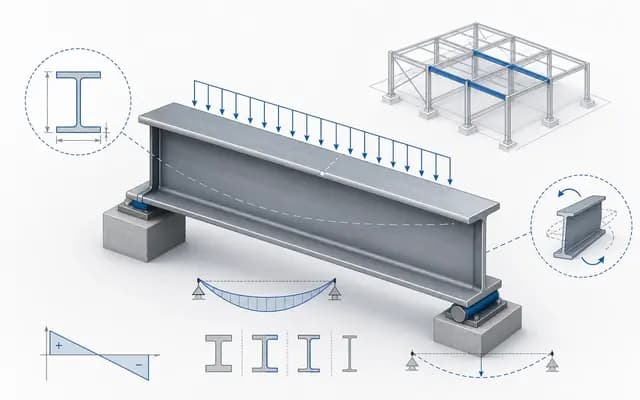
Concept & design
Size a steel beam
Examine a 6 m IPE 300 steel beam in CALC. Screenshots and a video show the example and how to prepare for further work in RFEM 6.
Explore the example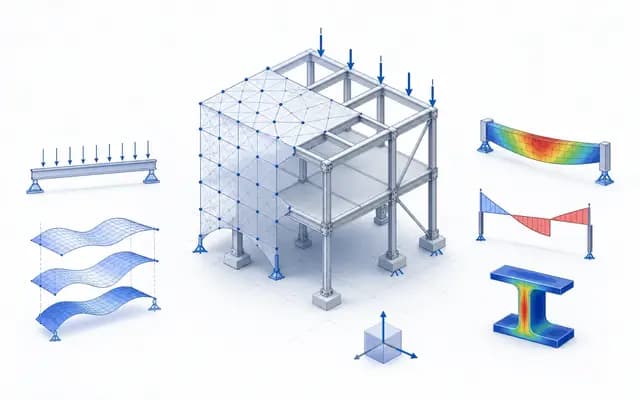
Options & decisions
Compare design options
Change one parameter deliberately and compare its effect on section size, utilization and deflection.
Explore the example
Documentation & handover
Create a calculation report
Bring results, inputs and assumptions together in an editable report and prepare it for PDF export.
Explore the example
Content updated: